The DA Browser is a single-page application, so what you see is all that there is.
The panel to the left lists all the goals that comprise the DA process, and selecting one brings up its goal diagram in the main panel.
Selecting items in the goal diagram reveals their detailed descriptions in the bottom panel.
The goal-diagram notation is summarized in the figure below.
You see that a process goal is indicated using a rounded rectangle and the process factors pertaining to a goal with normal rectangles.
Process goals will have one or more decision points that you need to consider addressing, with most goals having four or five decision points although some have eight or nine.
Each decision point is then addressed by two or more techniques/practices.
Because there may be many techniques to choose from, we indicate “default” techniques in bolded italics.
These defaults are good starting points for teams new to agile — they are almost always strategies from Scrum, XP, or Agile Modelling with a few Rational Unified Process (RUP)
ideas thrown in to round things out.
Some decision points you may choose not to address.
Sometimes options are “ordered”, which is indicated by a upwards pointing arrow to the left of the list of techniques.
What we mean by this is that the techniques appearing at the top of the list are more desirable
from the point of view of agile and lean thinking and the less desirable techniques are at the bottom of the stack.
Your team, of course, should strive to adopt the most effective techniques they are capable of performing given the
context of the situation that they face. In Figure 2 the first decision point has an ordered set of options, whereas the second one does not.
Typically when the options are ordered you will only choose one of them whereas you MIGHT choose several options in unordered situations.
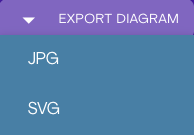
The currently showing goal diagram can be exported to a file in your local file system. Two formats are supported: JPG and SVG. (JPG is currently not available in non-Latin languages, see explanation below))
Latin languages
non-Latin languages
JPG format export is not currently available in non-Latin languages (Japanese, Chinese) but we are seeking to find a solution to this limitation and will support it in a future release of the application.
SVG, Scalable Vector Graphics, files are exported with the font types embedded in the file, which makes them transportable.
The search function searches process items in the DA process and lists the matching process items in a separate panel, in the
left part of the workspace.
The following parts of process items are searchable:
Item names
Item descriptions
Option tradeoff tables
References: title, authors, publisher
The search function is activated (and deactivated) by selecting the Search control button in the top menubar. When activated, the text input field is revealed where you enter
your search criteria. (See below for details)
Search control
Search function activated
The search results panel lists the hits in order of relevance (see below), and gives the total number of hits at the top.
Search Results list
Search Criteria details
Search terms can be combined into complex search criteria using the operators described below. Terms are case in-sensitive (e.g. "AGILE" and "agile" yield the same results)
Operator
How to use it
AND (upper case) && (can also be used)
The AND operator matches process items where both terms exist anywhere in the text of a single process item. This is equivalent to an intersection using sets. The symbol && can be used in place of the word AND
OR (upper case) || (can also be used)
The OR operator is the default conjunction operator. This means that if there is no Boolean operator between two terms, the OR operator is used.
The OR operator links two terms and finds a matching document if either of the terms exist in a document.
This is equivalent to a union using sets. The symbol || can be used in place of the word OR.
NOT (upper case) ! (can also be used)
The NOT operator excludes process items that contain the term after NOT. This is equivalent to a difference using sets. The symbol ! can be used in place of the word NOT.
Wildcards *, ?
Single and multiple character wildcard searches are supported within single terms (not within phrase queries).
To perform a single character wildcard search use the "?" symbol.
To perform a multiple character wildcard search use the "*" symbol.
The single character wildcard search looks for terms that match that with the single character replaced.
For example, to search for "text" or "test" you can use the search: te?t
Multiple character wildcard searches looks for 0 or more characters.
For example, to search for test, tests or tester, you can use the search: test*
You can also use the wildcard searches in the middle of a term: te*t
Note: You cannot use a * or ? symbol as the first character of a search.
Escaping Special Characters
Escape special characters that are part of the built-in query syntax. These are the the special characters:
+ - && || ! ( ) { } [ ] ^ " ~ * ? : \
To escape these character use the \ before the character. For example to search for (1+1):2 use the query:
\(1\+1\)\:2
Additional help
The Lucene search engine is used for searching, and additional information on query syntax can be found here:
You can also make your search criteria more exact by specifying which part of process items you wish to search.
This is done by prefixing the search string with the entity type:
type
prefix
item name
"name:"
item description
"description:"
option tradeoff table
"tradeoffs:"
reference title
"title:"
reference authors
"authors:"
reference publisher
"publisher:"
For example: "authors:Ambler"
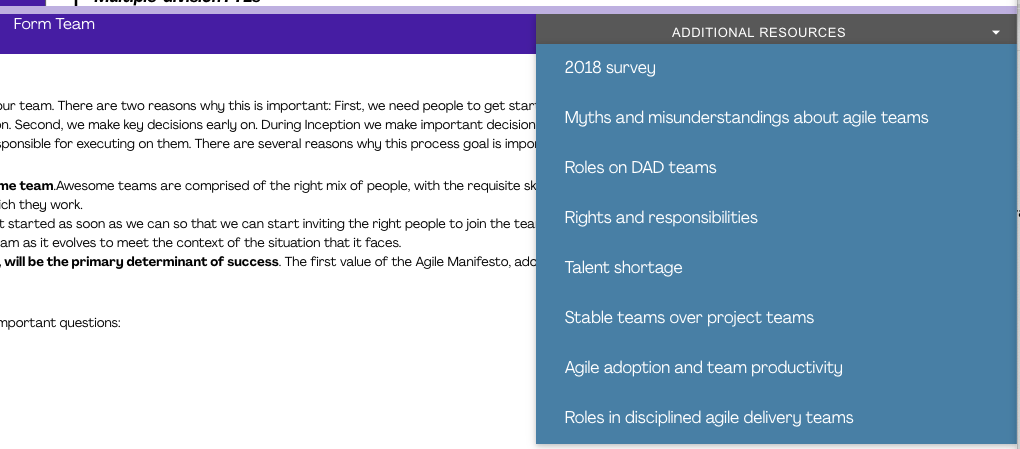
Individual process items optionally have external resources attached to them, which provide further insight and understanding of the topic on hand.
Not all process items have them, but for those that do a drop-down menu is provided with the list of available resources.
Selecting a resource in the list opens the linked resource in a new browser tab.
Conditional resources control
Resources dropdown list
Tip: hovering over a reference in the list will reveal its URL (with a slight delay)
The optional See Also drop-down menu provides navigation to associated process elements elsewhere within the process, which
may provide further context to the item being viewed.
Note that not all process items have associated links, in which case the drop-down menu is not showing.
The Feedback function provides a convenient way for you to provide feedback on process content and application features to the DA team.
We welcome any and all feedback, both about the process content and the functionality and features of the DA Browser itself.
Select FEEDBACK in the main menu.
Select the Send feedback link. This creates a new, pre-populated, email in your email client.
Close the feedback dialog.
As you navigate to different process items in the DA Browser their location and name are now echoed in the browser's address field.
To bookmark a page within the DA Browser, you now use the browser's native bookmarking feature.
Bookmarks of individual process items work as permalinks and stay valid over new releases of DA. (They always point to the latest DA release)
(The previous Copy URL function became obsolete and was removed)
As you navigate through pages in the DA content, they are added to the browser history which allows navigation back and forth using the native browser functions.